


With the coronavirus pandemic raging on, schools are still closed to large number of children whilst teachers juggle with classroom teaching, as well as online learning. Some schools are running live lessons, whilst others are leaning more towards pre-recorded chunks of lesson supported by learning packs.
I’ve been seeing lots of questions on social media from teachers looking for recommendations for software to help record lessons to share online. So I’ve put together a list to help.
Here are some of the top tools to help teachers to create videos of your lessons to use with a class.
Zoom
A lot of us are using Zoom at the moment. It’s the main platform I’m using to deliver lectures and webinars. Even if you’re school are using a different platform, you can still use Zoom as a screen recording tool to record lectures. Just set up a meeting that only you attend, and record it!
Log into the Zoom website and simply click on Host a Meeting then With Video On. You can then use the recording tools to record from your webcam whilst you deliver the lesson. You can pause and restart recording from the toolbar. Zoom also allows you to share your screen and put your webcam video in the corner.
When done, stop recording and the video should be saved to your hard drive – it’ll ask you where to save it when the video has finished converting. You can then upload this to YouTube, Vimeo or Google Drive.
Loom
Loom is screen recording software that can run from your browser through a chrome extension or as a standalone app. When you start Loom, you can choose to record just your face (webcam view), a single tab, or the whole screen (with or without audio). Screens are recorded with your webcam in the corner.
Loom has various pricing options, and thankfully there’s a free version for teachers, but you’ll need to verify your account. Details here.
Videos created with Loom can be stored and viewed on the Loom site, or downloaded to be used on a platform of your choice such as YouTube.
Screencastify
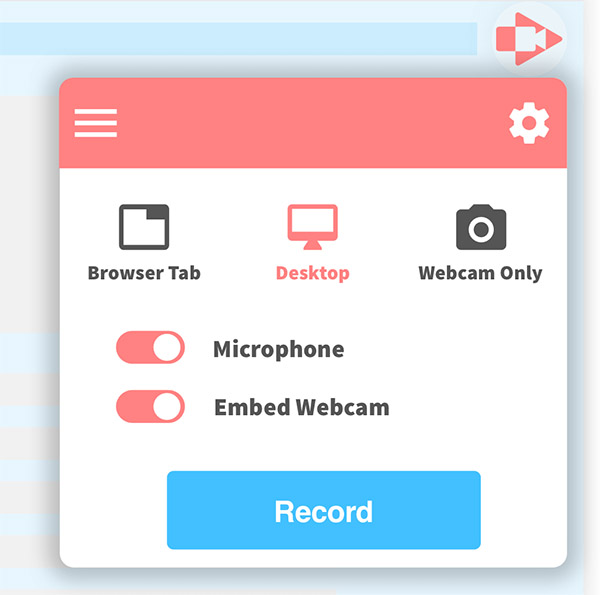
Screencastify records your screen via a chrome plugin, much like Look does. There’s a free version with a 5-minute video limit. Or an unlimited paid version for $29 a year (Educational discount price). You can easily share videos to Google Classroom.
PowerPoint (record screen)
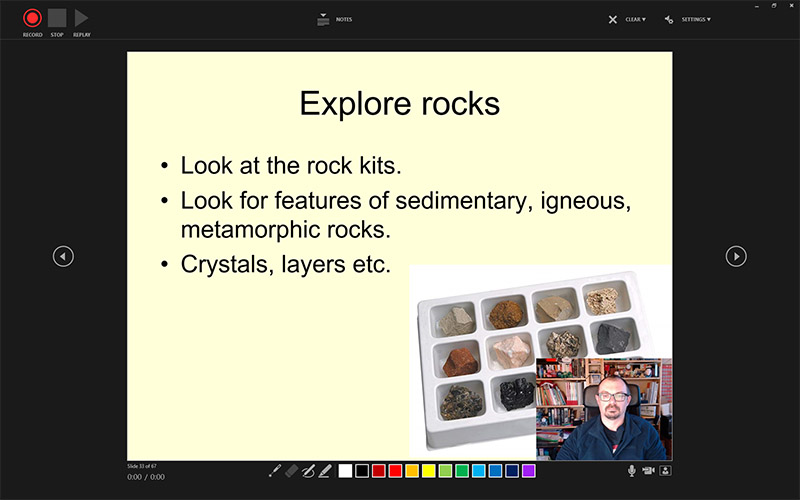
PowerPoint has a cool feature that will let you record your voice (and video) onto slides, and then you can export this as a video file.
In PowerPoint click on Slide Show and Record Slide Show. This will open up the Screen Record tools. Hit record and start talking. Move through your slides as normal, and narrate as you go along. When you’re done, the video and narration for each slide will appear in the presentation. You could save this, and share the PowerPoint file with students and they’ll see the videos as they work through the slideshow.
Alternatively, to create a video, click on File and choose Export and Create a Video. Choose a video quality you want (Full HD) and Use Recorded Timings and Narrations. The video file produced can then be uploaded to YouTube, Google Drive etc.
Screencastomatic
Screencastomatic provides a free screen recorder tool for desktops and mobile devices. You can capture any area of your screen for quick recordings with the option to add audio narration from your microphone and video from your webcam. Additional features, such as video editing come as an extra subscription.
Win+G in Windows
If you have a Windows 10 computer then you actually have a screen recorder built in. It’s designed for recording and streaming games – but it’ll work just as well when recording desktop apps such as a PowerPoint presentation. Just press the Windows Key and G together to bring up the gaming toolbar. This post explains more about the Game Bar and how to use it.
Use Your Phone
Most of us are carrying around a pretty decent video camera in our pockets all the time. Our phones. Prop your phone up or use a cheap phone tripod and use the phones camera app to record yourself. This is good if you don’t want to share a computer screen in your lesson, but want to use a whiteboard in the background to draw and write on, or show a practical demonstration for science, design and tech or PE. Most phones allow you to do some basic editing too using a built-in app or you can download others. To edit films on your phone you could try something like Adobe Premiere Rush (which does need a subscription, but you can export 3 videos a month for free) or maybe iMovie if you have an iPhone. There are more suggestions for movie editing apps you can try here.
Export your video to your computer using something like Dropbox. Or you could upload the video directly to YouTube etc.
Bonus Tool: Flexclip
As a bonus tool, also consider Flexclip which has a screen recording tool built-in.




This is such a relevant article at this time – how to record lessons is something that comes up a lot!