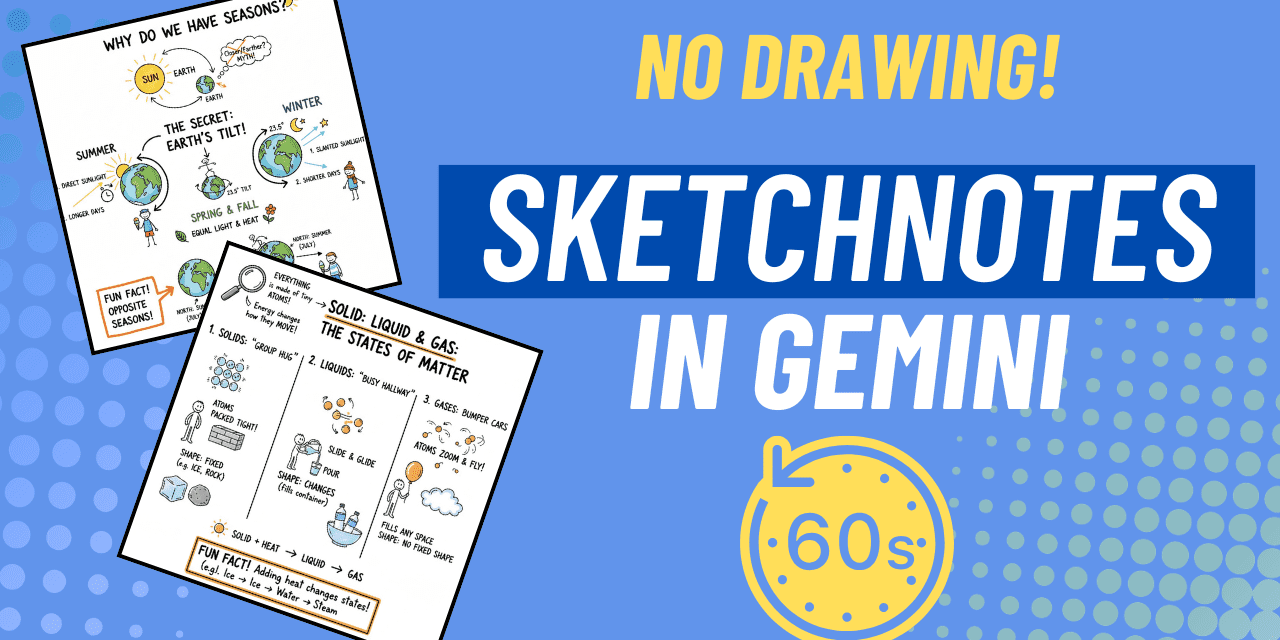
If you’ve ever wished you had a quick visual summary to share with pupils, one that actually looks like it was sketched by hand rather than generated by a computer, Google Gemini can now produce exactly that. This short walkthrough shows you how to get usable sketch notes out of Gemini in just a few minutes.
What Are Sketch Notes?
Sketch notes are visual summaries that combine text and simple illustrations to capture ideas in a memorable way. They’re popular in education because they support visual learners, make abstract concepts more concrete, and give pupils something to refer back to rather than a wall of typed text.
The good news here isn’t that AI has suddenly become creative. It’s more practical than that: Gemini can do a reasonable first draft of a sketch note, quickly, which you can then refine or use as a starting point.
What You’ll Need
Just a Google account and access to gemini.google.com. No special subscription is required for the basic image generation feature, though availability may vary.
Step 1: Start a Chat in Gemini
Go to gemini.google.com and open a new chat. Before you do anything else, check the mode setting. Switch from Fast to Thinking for a better quality response. It takes a little longer, but the output is noticeably more considered.
Step 2: Ask Gemini to Explain Your Concept
Start with a clear explanation prompt. For example:
“Can you explain why we get seasons and why the earth’s tilt is important? Please explain this for 10-year-olds.”
Gemini will generate a written explanation. Don’t skip this step. The explanation gives Gemini the content it needs to produce a meaningful visual rather than a generic one.
Step 3: Ask for a Sketch Note
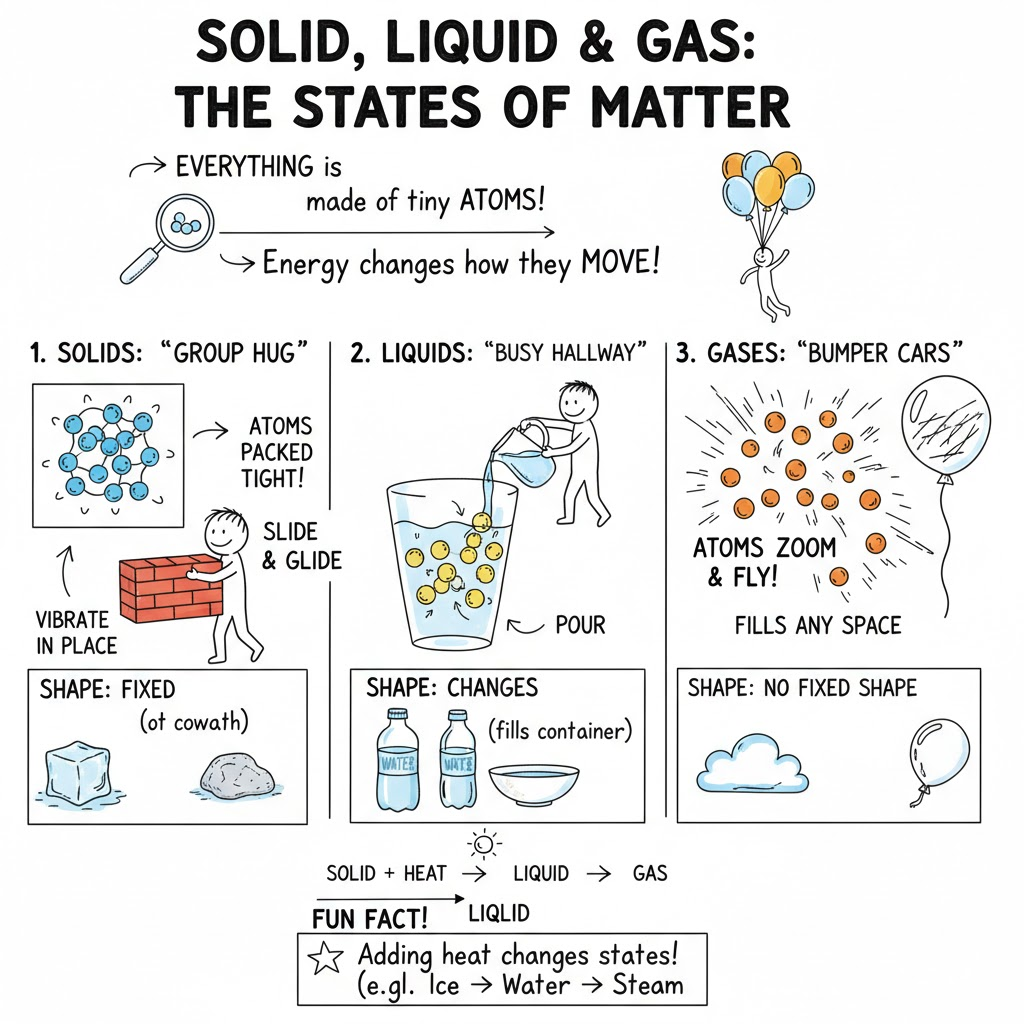
Once you have the explanation, follow up with a second prompt asking Gemini to turn it into a sketch note. A prompt along these lines works well:
“Using your visual thinking skills, create a hand-drawn sketch note visual summary of this explanation. Use a sketchy pen style, suitable for a 10-year-old.”
Then, importantly, click on the Tools option below the text box and select Create Image before hitting submit. This tells Gemini you want a visual output, not more text.
Step 4: Review and Refine
Gemini will generate your sketch note. Click on it to view it at full size, or hover over it and select the download option to save a full-size version.
Check it carefully. You may spot errors, odd word choices, or details that don’t quite work. If so, ask Gemini to regenerate. You can be specific: “Please redo this without the word ‘flashlight’, using ‘torch’ instead”, for example. A couple of iterations usually gets you something usable.
Going Further: More Complex Topics
The same approach works for more abstract or curriculum-heavy topics. Try something like:
“Describe AI for beginners. Explain how it can be used in education.”
Generate the explanation first, then use the sketch note prompt with the Create Image tool. Gemini will produce a more complex visual summary. It won’t always be perfect, but it gives you a solid starting point.
Classroom Application
Here are three ways to use this in your teaching straight away:
- Pre-lesson visual primers. Generate a sketch note for the key concept of your next lesson and display it on the board as pupils arrive. It works as a low-key retrieval cue or a preview of what’s coming.
- Pupil-facing revision resources. Produce sketch notes for revision topics and share them digitally or print them for books. They’re particularly useful for pupils who find dense written notes hard to process.
- Modelling the skill. Show pupils a Gemini-generated sketch note, then ask them to create their own by hand on the same topic. It gives them a model to work from and makes the task feel more achievable.
A Note on Accuracy
AI-generated images, including sketch notes, can contain errors. Words may be misspelled, details may be inaccurate, and occasionally the visual logic won’t quite make sense. Always review the output before sharing it with pupils. It’s worth treating Gemini’s sketch notes as a draft rather than a finished resource.
Worth Experimenting With
The sketch note prompt is something you’ll want to play around with. Adjusting the age range, the style description, or the complexity of the topic will give you different results. There’s no single perfect formula; it depends on the concept and what you need the visual to do.
Give it a try with a topic you’re teaching next week. It takes about five minutes from start to finish, and even an imperfect output can save time compared to building a visual from scratch.