Most of us have a folder somewhere full of Publisher files. Worksheets, word mats, certificates, class newsletters, display labels, and the sports day programme someone made years ago that everyone has been updating ever since. Publisher was installed on almost every school computer for a long time, so it became the default tool for anything that needed text and pictures on the same page.
Now that Publisher has been retired, a lot of those files have become a problem. Double-click on one and you are likely to get an error, or Windows asking which app you would like to open it with. The resources are still there; you just can’t get into them.
Here is what has happened, and two free tools that will open .pub files and let you edit them again.
What Has Happened to Publisher?
Microsoft announced in February 2024 that Publisher would be retired. Support ended on 13 October 2026, and Publisher has been removed from Microsoft 365. If your school gets Office through a Microsoft 365 subscription, as most do, Publisher has either gone from your machines already or will do shortly.
Your files haven’t been deleted. They are still sitting in shared drives, OneDrive and Teams folders. The problem is that very little other software has ever been able to read the .pub format. Word, PowerPoint, Google Docs and Canva can’t open it. Microsoft’s advice was to convert everything to PDF or Word before the deadline, but you needed Publisher to do that, and I suspect very few schools got round to it during a busy term.And if you haven’t done that by now, it’s too late to start.
If you still have an older standalone copy of Office installed, it may continue to open your files, but it will no longer receive updates or security fixes. I wouldn’t build a plan around it.
So what can we do now?
Option 1: LibreOffice
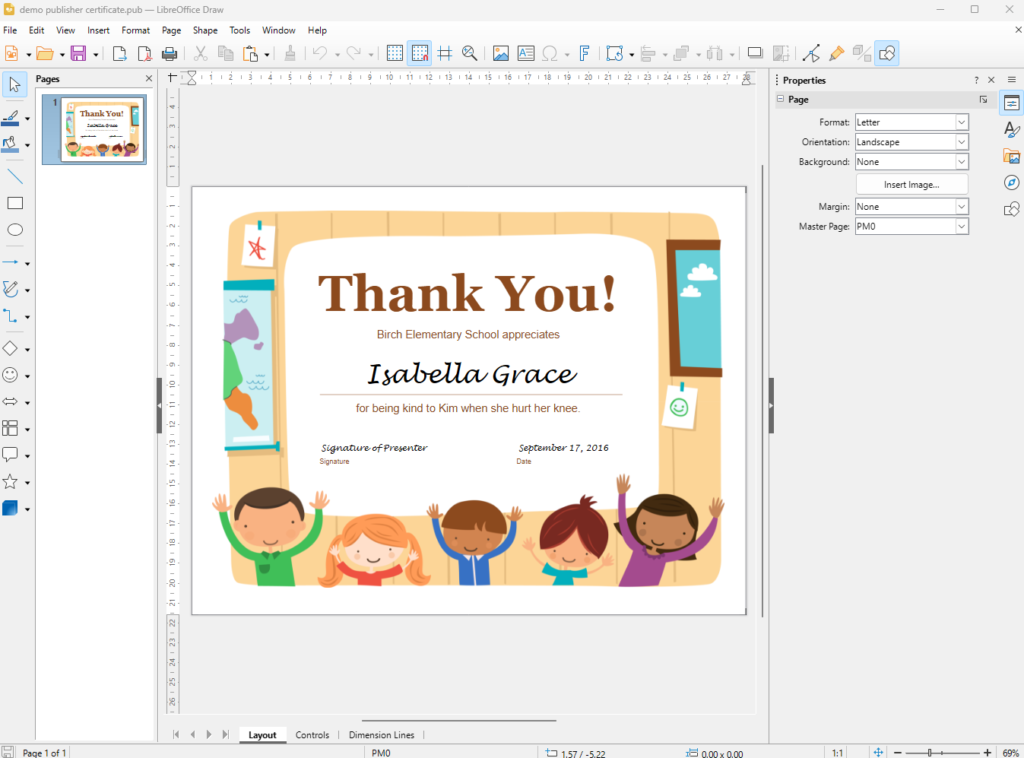
LibreOffice is a free, open source office suite that has been around for many years. Alongside a word processor, spreadsheet and presentation tool, it includes a program called LibreOffice Draw, and this is what opens Publisher files. It runs on Windows, Mac and Linux, and you don’t need to create an account to use it.
How to get it
Go to libreoffice.org and click Download. The site should detect your operating system and offer you the right version. Run the installer and accept the default settings. On a school laptop you will probably need your IT technician to install it, so I’d suggest asking about this now rather than the evening before you need a resource.
If you’re installing on your own devices, then it’s a very simple process.
Opening your files
Open LibreOffice, choose Open File and select your .pub file. It will open in Draw. You can click into text boxes to change the wording, move or replace images and adjust the layout.
You can’t save back to Publisher format, so you have two choices when you have finished. Save it as a LibreOffice Drawing (.odg) if you want to keep editing it, or use File > Export as PDF for a copy that is ready to print or share with colleagues who won’t need to edit it.
Simple worksheets tend to come through well. More complex layouts may need some tidying: fonts can be swapped if your computer doesn’t have the original installed, and text boxes sometimes shift slightly. I’d strongly suggest a quick sanity check for any files opened before you print 30 copies.
If your school has a large archive of Publisher files, it is worth knowing that LibreOffice can also be run from the command line to convert a whole folder to PDF in one go. That is a job for your IT team (if you have one) rather than a class teacher, but it could save a lot of time.
Option 2: Affinity Studio
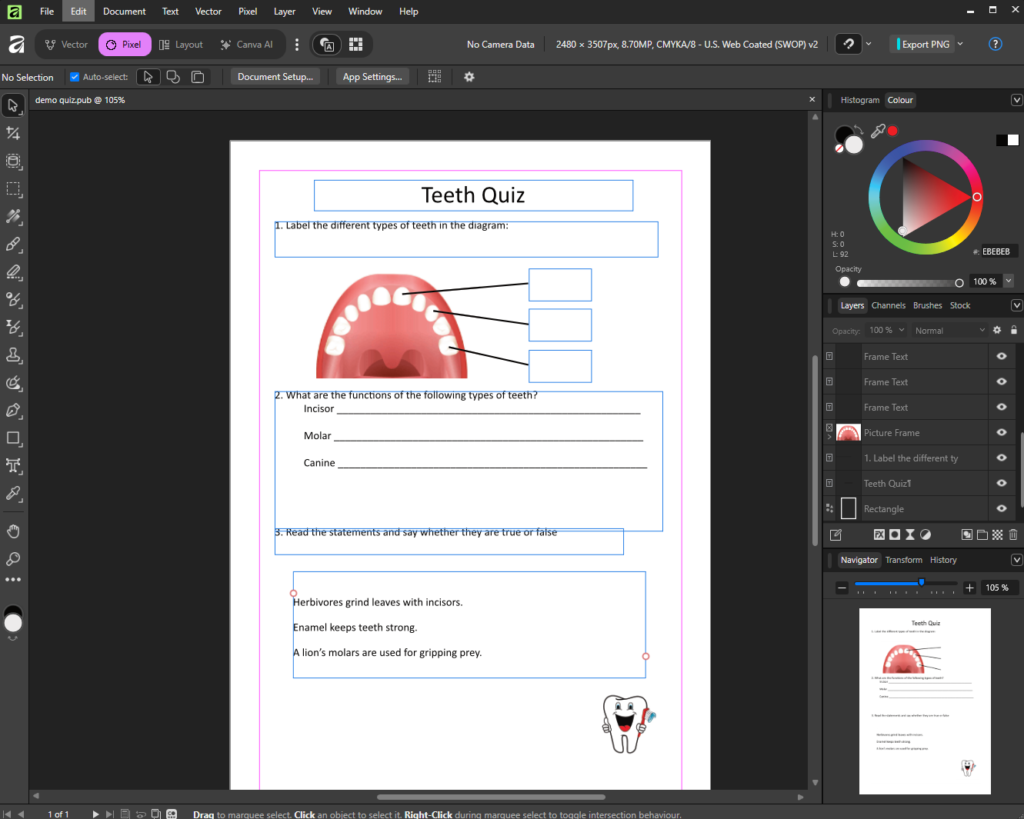
Affinity used to be a paid suite of design apps, including Affinity Publisher, a professional page layout program. Originally Serif, Canva bought the company in 2024, combined the apps into a single program, and made it free. A recent update added the ability to open Microsoft Publisher files directly.
Affinity is professional design software, so it gives you a lot more control than LibreOffice Draw. It is a good choice if you produce newsletters, prospectus pages or display materials and want them to look polished. It is also a bigger program, and it can feel a little overwhelming the first time you open it.
How to get it
Go to affinity.studio and download the app for Windows or Mac. When you first open it, you will be asked to sign in with a Canva account. A free account is enough; the only parts that need a paid Canva plan are the AI tools, and you don’t need those to edit your files. If you are installing it on a school device, check your school’s policy on signing in with accounts, and ask IT if you don’t have permission to install software.
Publisher support was only added recently, so make sure you are running the latest version.
Opening your files
Use File > Open and select your .pub file. Affinity imports it as a new document, which you then save in Affinity’s own format. From there you can edit it and export to PDF or image formats for printing or sharing.
As with LibreOffice, expect to do some checking. Complex layouts, tables and WordArt don’t always import cleanly, so look over each page before you rely on it.
Which Should You Choose?
For most teachers who just need to update an old worksheet, LibreOffice is the simpler option. There is no account to set up, it is quick to install, and it does the job.
If you, or someone in the school office, produces more designed documents such as newsletters, leaflets or display materials, Affinity is worth the extra time it takes to learn.
Neither is a perfect replacement for Publisher, and both may need some tidying after import. As they are both free, there is nothing to stop you trying each one with your own files and seeing which suits you.
It is also worth thinking about the longer term. For resources you edit every year, it makes sense to rebuild them in a tool that everyone in the school can open, such as Word, PowerPoint, Google Docs or Canva. A resource that only one program can open will always be at risk of this happening again.
Summary
Publisher has gone, but the resources we built in it don’t have to go with it. LibreOffice and Affinity are both free, both open .pub files, and between them they should rescue most of what is sitting in your shared drive. Spend half an hour this week finding out what you have, test both tools, and convert the files you rely on.
What are you doing with your old Publisher files? Have you found another tool that works well? Let me know in the comments.